Free template
Free Purchase Order Template for Excel (.xlsx)
A purchase order is the document a buyer sends a seller: what's being ordered, in what quantity, at what price — written and sent before anything ships. That makes it the mirror image of an invoice, where the seller asks the buyer to pay after the work is done. This page has the Excel version of our free purchase order template — the same standard and blanket layouts as the main template page, as live .xlsx spreadsheets: line totals and the subtotal add themselves up as you type, and the tax figure stays a cell you fill in yourself. No sign-up, no email, no watermark.
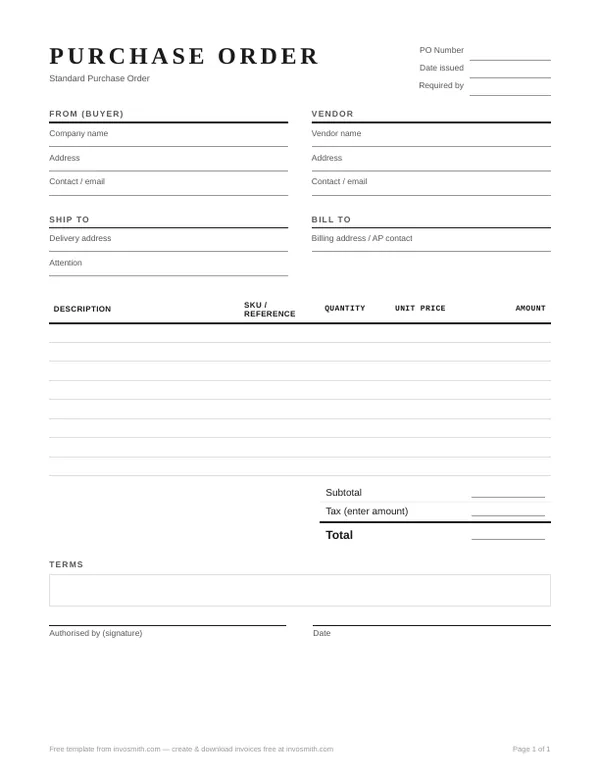
Download the purchase order template for Excel
Standard purchase order
One order, specific items and quantities, one requested delivery date. This is the one most people need.
Blanket purchase order
Use it for repeat purchasing under agreed terms. The workbook has Validity Window and Release # fields instead of Required By and Reference.
Every download is free — no email, no sign-up, no watermark.
Prefer PDF or Word? Both are on the main purchase order template page, along with a filled-in example and what to put in every field.
Editing the spreadsheet: which cells are formulas
The workbook has live formulas in three places. Everything else is a cell you simply type in.
- Line totals — cells F13:F32. Each row's Amount is a formula. Type into the item fields; leave column F alone.
- Subtotal — cell F34. It's
=SUM(F13:F32), the whole item table. It updates as rows fill in. - Total — cell F36. Subtotal plus tax.
- Tax (enter amount) — cell F35 — is not a formula. It's a blank cell for an amount you determine for the order. The workbook does not calculate tax or apply a tax rate.
To add item rows: click inside the item table in rows 13–32, right-click, then choose Insert › Table Rows Below. Keep each item inside the table; items typed below row 32 sit outside the SUM(F13:F32) range. Check the subtotal after changing the table before sharing the order.
To remove item rows: right-click inside the table row and choose Delete › Table Rows. The workbook’s Editing notes sheet documents these table commands; avoid deleting worksheet rows or typing new items below the table.
The header rows are frozen, so the column titles stay visible while you scroll, and the print area is set so a filled order prints on one US Letter page. The blanket version has the same formulas; its labels include a validity window and a release number rather than Required By and Reference (see the main template page for broader format guidance).
Keep an untouched copy of the downloaded workbook before changing rows or labels. After editing, compare the visible line amounts with the subtotal and final total, then save the working .xlsx separately from the fixed-layout copy you send. This leaves a reusable source file without overwriting the completed order.
What goes where in the workbook
The spreadsheet follows the standard purchase order layout, top to bottom: the PO number and dates sit at the top, followed by four address blocks — From (Buyer), Vendor, Ship To and Bill To. The item table header is on row 12; item data starts on row 13 and includes Item, Description, SKU/Reference, Quantity, Unit Price and Amount. Totals sit below the item table, followed by Terms and Authorised by.
What to actually write in each of those boxes — and what goes wrong when they're left vague — is covered field by field on the main purchase order template page.
The buyer and vendor blocks run in the opposite direction from an invoice: the buyer issues the order to the vendor. Ship To identifies where the goods or work go, while Bill To identifies the address used for the buyer’s billing record. Keeping both blocks avoids forcing one address to serve two different purposes.
Use one line per item or service and keep the description readable without relying on the SKU alone. Quantity and unit price feed the amount formula; the SKU or reference helps the buyer and vendor match the line to their own catalog or agreement.
Frequently asked questions
Do the totals calculate automatically?
Line totals and the subtotal do — they are live formulas, so amounts add themselves up as you fill rows in. The tax figure is a blank cell you fill with an amount determined for the order; the workbook does not calculate tax or apply a tax rate. The final total adds subtotal and the tax amount together.
Should I send the vendor the .xlsx or a PDF?
A PDF is a useful fixed-layout sharing copy; keep the .xlsx as your editable working file for the next order. The exact export steps depend on the spreadsheet app you use.
What's different in the blanket purchase order file?
The formulas are identical; the labels change. The standard file has Required By and Reference fields, while the blanket file has Validity Window and Release # fields. The Word version has both layouts without formulas.