Free template
Free Purchase Order Template for Word (.docx)
A purchase order is the document a buyer sends a seller — what's being ordered, how many, at what price — written before anything ships, which makes it the opposite of an invoice: there, the seller asks the buyer to pay. This page has the Word version of our free purchase order template, with the same standard and blanket layouts as the main template page, as editable .docx files. It's the version to pick when you want to change how the document looks — add a logo, reword the terms, adjust the table — rather than have the totals add themselves up. No sign-up, no email, no watermark.
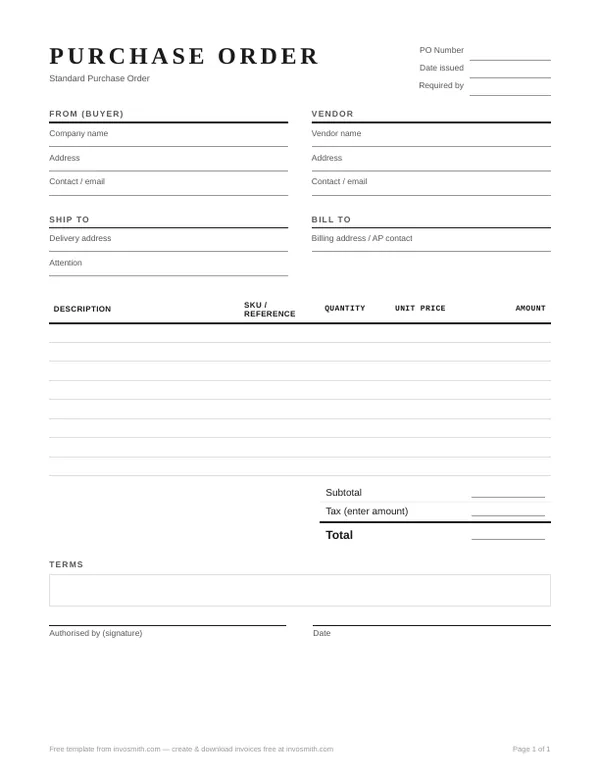
Download the purchase order template for Word
Standard purchase order
One order, specific items and quantities, one requested delivery date. This is the one most people need.
Blanket purchase order
Agreed prices and terms across a period, drawn down as you order — a validity window and a not-to-exceed amount instead of one delivery date.
Every download is free — no email, no sign-up, no watermark.
Prefer PDF, or a version that does the sums for you? Both are on the main purchase order template page — the Excel one is here.
Editing the Word file: adding and deleting table rows
These files use tables for the main form blocks and item grid. The standard and blanket files each have eight blank item rows, followed by a separate totals table. Editing text, inserting rows or changing borders can alter pagination, so review the layout after changes.
- Add an item row. In Word, use the table’s row-insertion control (for example, press Tab in the last cell or right-click a row › Insert › Rows Below). The totals block is a separate table after the item grid in these files; added rows may need layout adjustment. Check the totals position and print preview before sending.
- Delete an unused item row. Select the whole row and use Delete Rows, rather than clearing only its text. Review the remaining grid and page breaks after editing.
- Edit the address blocks. From (Buyer), Vendor, Ship To and Bill To are a two-by-two table. Change the text inside the cells. Changing borders may affect alignment, so check the print layout after editing. Keep your own details in From (Buyer) — on a purchase order the buyer issues the document, which is the opposite of an invoice.
- Fill in the totals by hand. Word doesn't do arithmetic: add up the line amounts for the subtotal, then enter the tax you've agreed with the vendor — the template works no tax out for you. If you'd rather the file did the adding, use the Excel version; the layout is the same.
If you want a one-page printout, remove only unused item rows or adjust the layout; keep every actual order line even if it needs a second page. When adding a logo (Insert › Pictures), check the print layout afterward because images may shift content.
What goes where on the page
The files place the PO number and dates first, followed by From (Buyer), Vendor, Ship To and Bill To address blocks, an item grid, totals, Terms and Authorised by fields. See the main purchase order template page for field guidance; the Word file does not establish a vendor’s approval requirements.
What to write in each of those boxes — and what goes wrong when they're left vague — is covered field by field on the main purchase order template page, along with a filled-in example.
Frequently asked questions
How do I add rows without breaking the layout?
Use Word’s table-row insertion control, such as Tab in the last cell or Insert › Rows Below. The exact visual result can depend on the app and the row contents; the page layout may need adjustment. Check the totals position and print preview after editing.
Should I send the vendor the .docx or a PDF?
If you need a fixed-layout copy, export a PDF from the Word app you use; the steps vary by app. Keep the editable .docx as your working file, and send the format your vendor asks for.
Should I use the Word or the Excel version?
Choose the Word file when you want an editable .docx. The Excel workbook includes formulas for line totals and the subtotal. Compare the Word file with the main purchase order template page for field guidance, and use the format your vendor accepts.