Free template
Free Google Sheets Invoice Template
An invoice is the document a seller sends a buyer to ask for payment: what was done, what it costs, and when it's due. This version of our free invoice template lives in Google Sheets — you open the shared sheet, make your own copy, and edit it in your browser like any other spreadsheet. Line totals and the subtotal are formulas; the tax figure is a cell you type in yourself. There's nothing to install and nothing to pay. You'll need a Google account to make a copy — that's Google's requirement, not ours.
Open the invoice template in Google Sheets
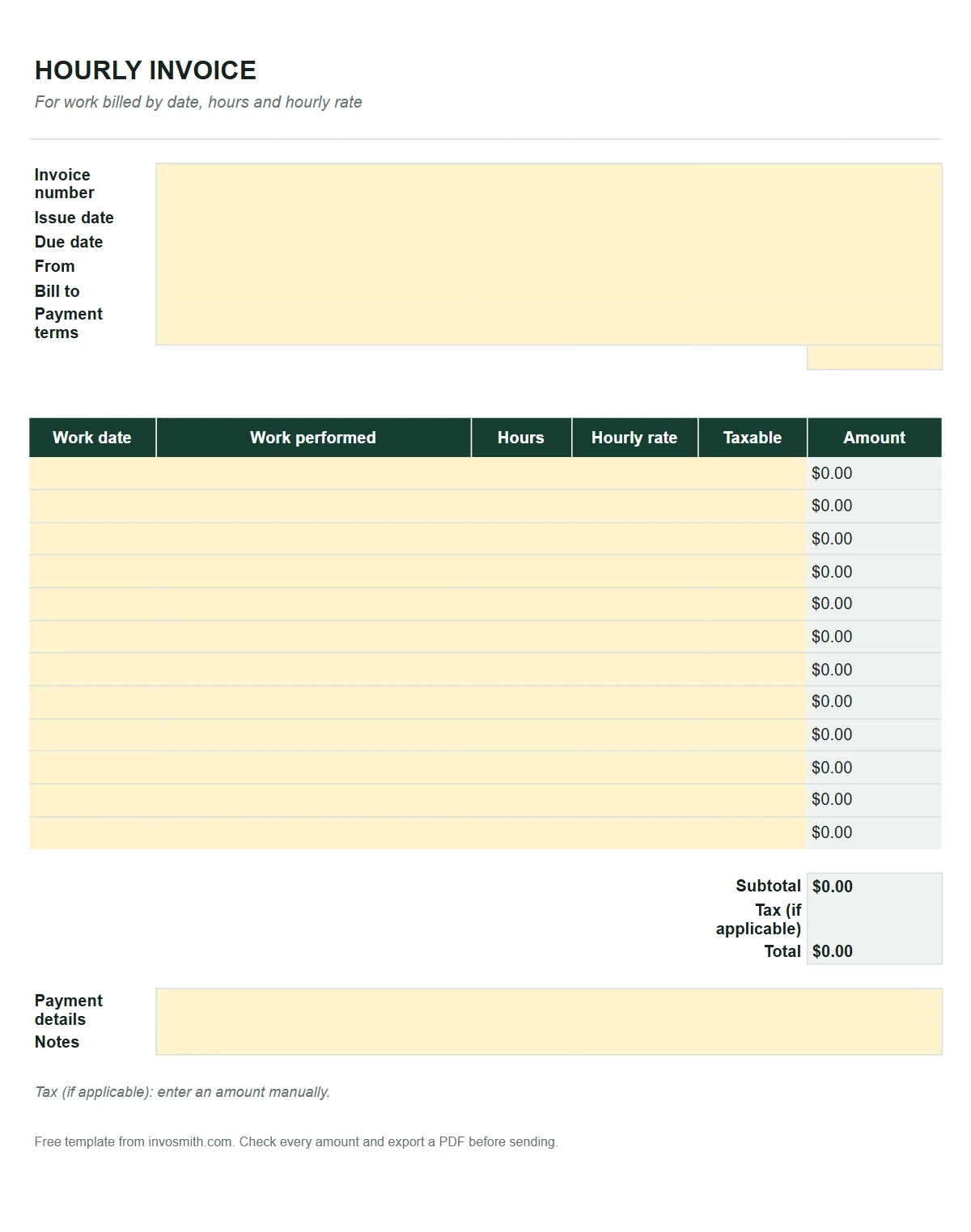
Hourly invoice workbook
Work date, activity, hours, hourly rate and formula-driven line amount and total. Enter Tax (if applicable) manually as an amount.
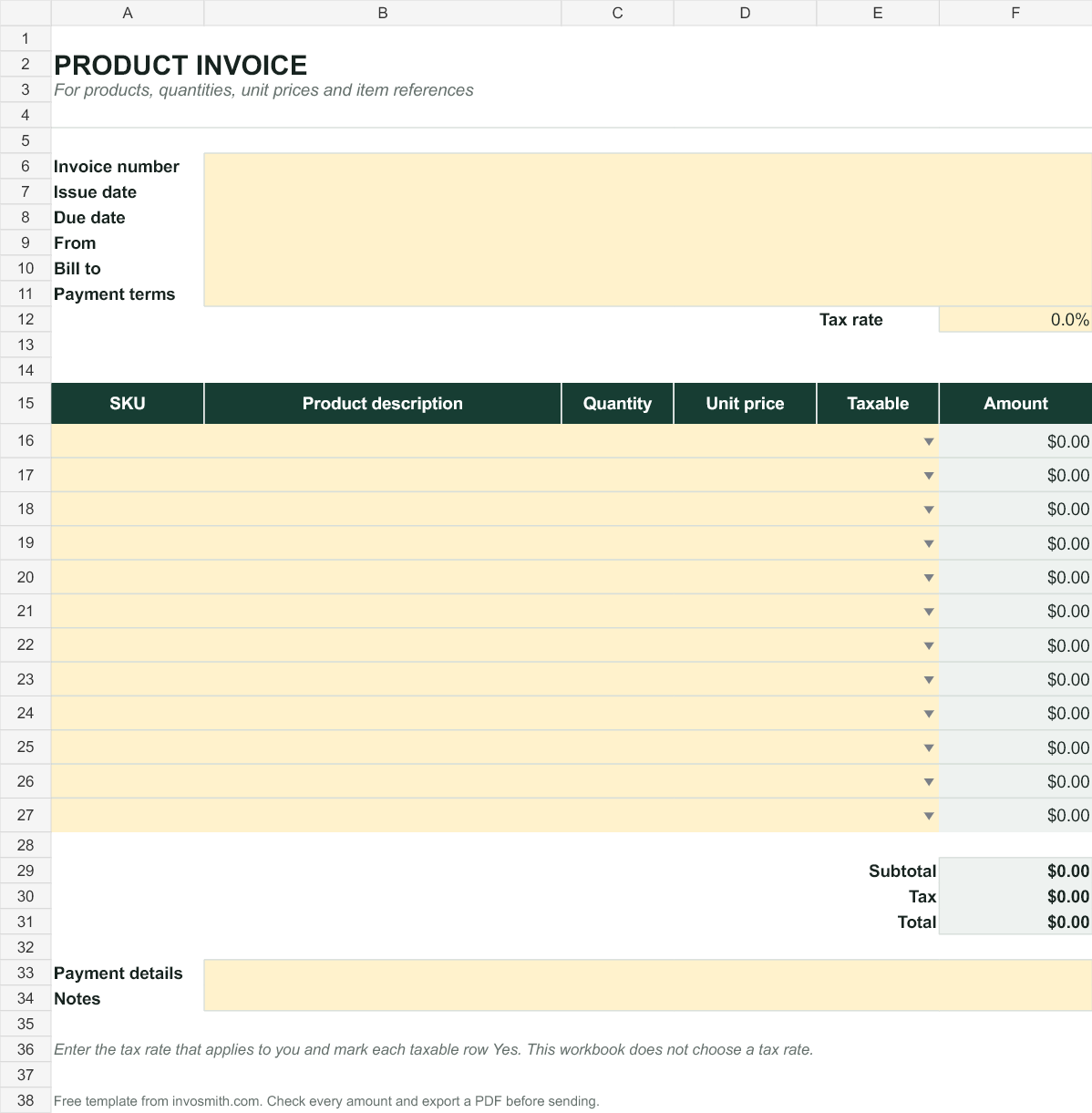
Product invoice workbook
SKU, product description, quantity, unit price, taxable selection and formula-driven totals.
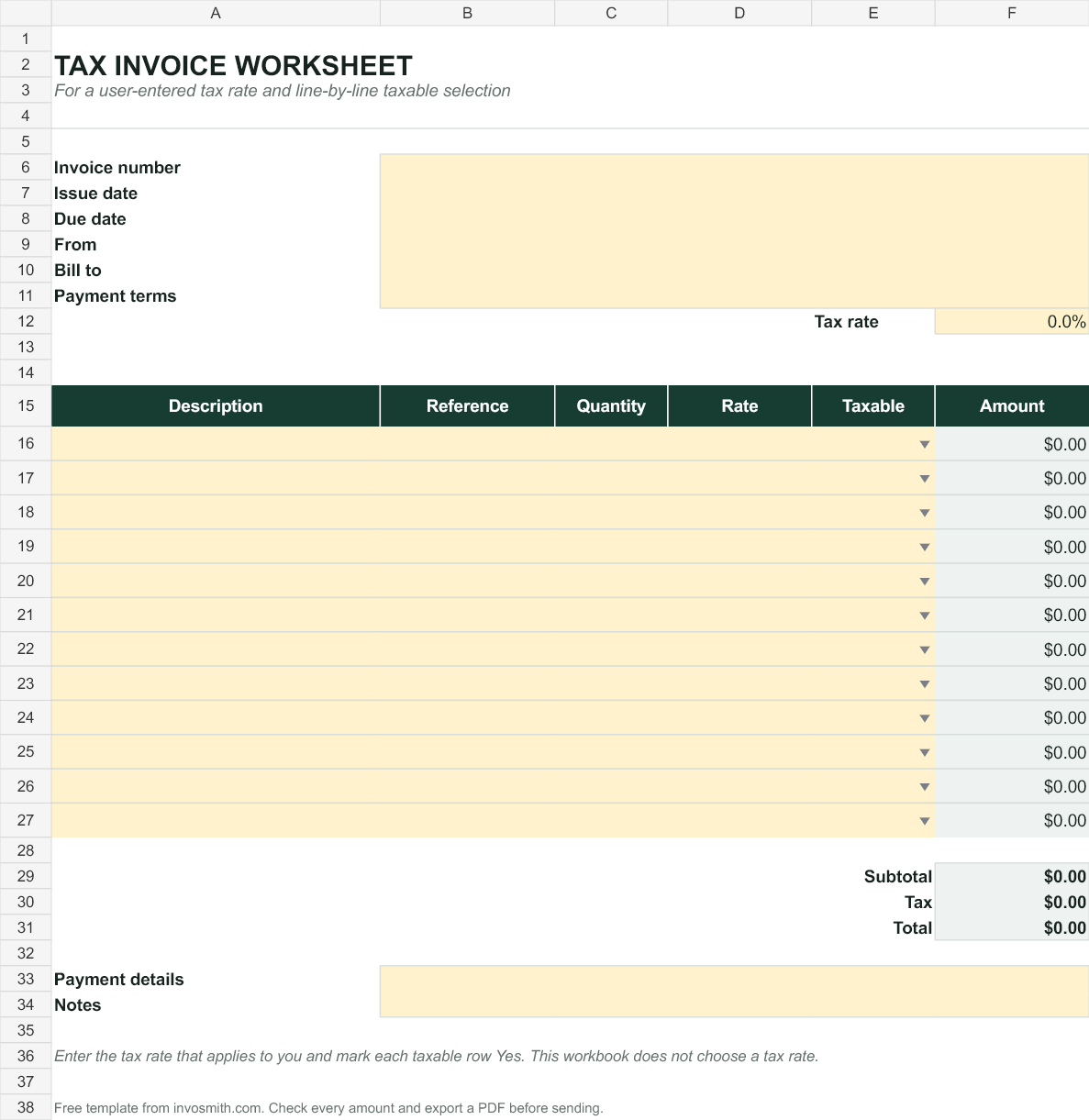
Tax invoice worksheet
Tax (if applicable): enter the tax amount manually and review the final total.
Multi-invoice workbook with summary
Three independent invoice tabs linked to a summary for invoice number, customer, dates, totals and user-entered status.

The link opens Google's Make a copy screen — one click, and the template is saved to your own Drive as a normal spreadsheet that's entirely yours. The original stays read-only, so it's always a clean copy. Free, with no watermark; you'll need to be signed in to a Google account, because the copy lives in your Drive, not ours.
If you'd rather have a file on your computer instead, use the Excel download, or choose an invoice template for Word for a document-style layout.
The hourly, product, tax and multi-invoice variants are available both as native Google Sheets copy links and direct .xlsx downloads. The native sheets preserve the tested formulas; check your completed figures and print layout before sending.
What goes on the invoice — and where it sits in the sheet
The field map below describes the original Simple sheet. In that version you type into the white cells and leave the shaded formula cells alone. The four newer variants use yellow input cells, row-level taxable selectors and a tax amount you enter manually; their differences are explained in the variant sections below.
- Invoice number and date — top right. Give every invoice its own number and keep the sequence in order.
- From — your business name and contact details. Yours, not the client's.
- Bill to — who owes the money: name, email, address.
- Line items — one row per item: description, quantity, rate. The Amount cell on each row is a formula (quantity × rate) — type into Description, Qty and Rate, and leave Amount alone.
- Subtotal — a formula that adds the Amount column. Don't type over it.
- Tax (if applicable) — a cell you fill in manually as an amount; leave it blank when it is not applicable.
- Total — subtotal plus tax, again a formula.
- Notes / payment details — how you want to be paid, and by when.
Editing your copy: formulas, rows and the tax cell
Three things worth knowing before you edit.
The formula cells. Each row's Amount, the Subtotal and the Total are live formulas. If you overwrite one, use Ctrl+Z (⌘Z on a Mac) first. An Amount formula can be copied from the neighbouring item row; restore a Subtotal or Total formula from a clean copy of the same template and check every referenced range rather than copying an unrelated row.
Adding rows. Right-click a row number _inside_ the item table and choose Insert 1 row above, then copy the Amount formula and any taxable selector from a neighbouring item row. Check the Subtotal range before relying on the result. Google Sheets does not guarantee that an inserted row will inherit every formula or remain inside every total range.
Tax (if applicable). Enter the tax amount manually and review the final total before sending.
When the invoice is ready, use File › Download › PDF and send the PDF. Don't share the sheet itself with a client: a shared sheet shows every edit you make afterwards, and the client only needs the finished document.
Choose a Sheet for hourly work, products, tax or multiple invoices
The original Simple sheet remains the general-purpose version. Four additional workbooks cover narrower jobs without mixing incompatible columns into one crowded grid. For the hourly version, add up your time before filling in the Sheet. Use the hours calculator to calculate a dated entry from its start and end times.
| Workbook | Use it when | What calculates |
|---|---|---|
| Hourly | Work is billed by date and hours | Hours × hourly rate, subtotal and total; tax amount entered manually |
| Product | Items need SKU and unit-price fields | Quantity × unit price, subtotal and total; tax amount entered manually |
| Tax worksheet | You need a separate tax amount field | Line amounts, subtotal and total; tax amount entered manually |
| Multi-invoice | Several invoices belong in one workbook | Each invoice plus linked summary totals |
How tax works in the new workbook variants
Enter Tax (if applicable) manually as an amount. Leave it blank in an example without tax, and review the final total after entering an applicable amount.
Keep the manually entered tax amount separate from the line subtotal. If your invoice needs multiple rates, compound taxes, withholding or country-specific tax fields, use a workflow designed for that jurisdiction rather than forcing several rules into this general worksheet.
Using the multi-invoice summary
The multi-invoice workbook starts with three invoice tabs. The Summary links each invoice number, customer, issue date, due date, subtotal, manually entered tax and total. Status and notes stay as human inputs because a spreadsheet cannot know whether a customer paid. Blank invoice tabs remain blank in the summary instead of appearing as zero-value invoices.
When you need another invoice, duplicate the last invoice tab and add a matching linked row to the Summary. Check the copied formulas before relying on the new row. This workbook is a lightweight organizer, not an accounts-receivable system; it does not send reminders, reconcile bank payments or update status automatically.
Frequently asked questions
Do I need a Google account to use this template?
A Google account is needed at one moment only: making your copy — the copy is saved into your Google Drive, and that requires being signed in. That's how Google Sheets works, not a restriction we added. If you'd rather not use a Google account, the Excel invoice template is a straight file download.
Are the totals formulas — and does the sheet work out tax?
Line amounts, subtotal and total are formulas. Enter Tax (if applicable) manually as an amount and review the final total.
How do I send the finished invoice to a client?
Send the invoice as a PDF — File › Download › PDF — and attach that. Avoid sharing the sheet itself: a live sheet shows every later edit, exposes your other invoices if you reuse the file, and your client only needs the finished document anyway.
Do the new variants include a tax rate?
No. Enter the tax amount manually under Tax (if applicable), then review the final total.
Does the multi-invoice workbook track payments automatically?
No. Invoice totals link into the Summary, but status and notes are entered by you. The workbook does not connect to a bank or detect payment.