Free template
Free Excel Invoice Template (.xlsx)
An invoice is the document a seller sends a buyer to ask for payment — the mirror image of a receipt, which confirms the money already arrived. These are free invoice templates as real .xlsx files for Excel: not PDFs with an Excel label on them, but spreadsheets you can open, edit and reuse. Line totals and the subtotal are live formulas. Enter the tax amount manually under Tax (if applicable), then review the final total. Download them free — no email, no sign-up, no watermark.
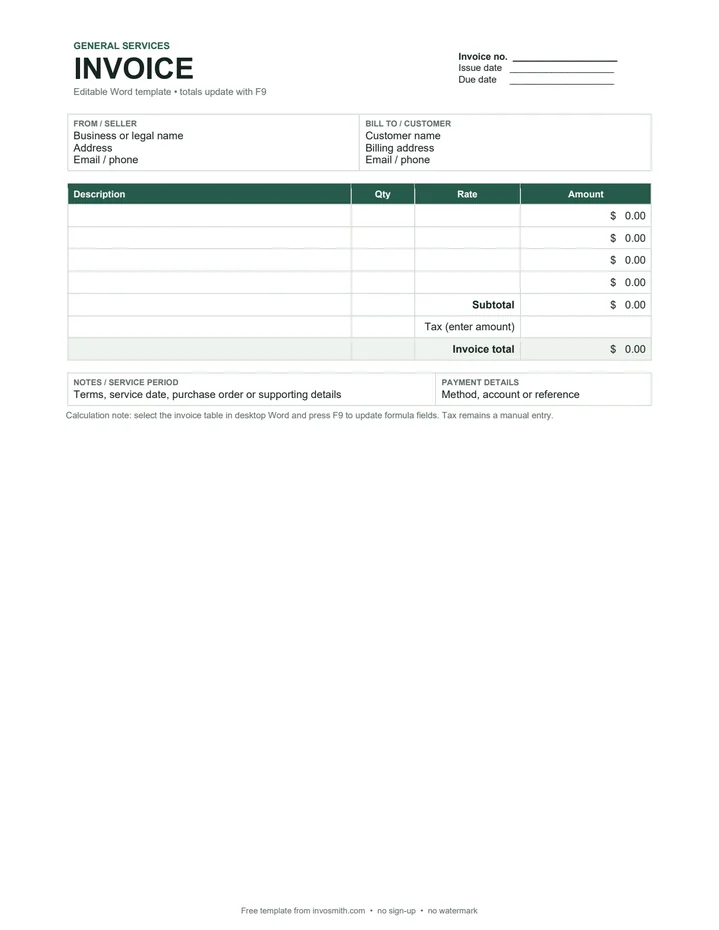
Download the Excel invoice template
Simple Excel invoice template
A real .xlsx invoice with line-total and subtotal formulas.
Service invoice template for Excel
Fixed-fee and quantity-based service lines with live amount and total formulas.
Hourly invoice template for Excel
Hours multiplied by an editable hourly rate, with live subtotal and total formulas.
Tax invoice worksheet for Excel
Tax (if applicable): enter the tax amount manually and review the final total.
Every download is free — no email, no sign-up, no watermark.
Each file is a standard .xlsx built for Excel. Other spreadsheet apps may import it, but check the formulas and print preview after importing.
Choose the Excel invoice that matches the work
Use Simple for a short general invoice, Service for fixed-fee or repeated services, Hourly when time × rate is the calculation, and Tax when you need a separate manually entered tax amount. Each file is a separate workbook, so you can keep the version you actually use without deleting unused columns. Choose the Word invoice template when the invoice needs a document-style layout instead of spreadsheet formulas.
Use the Tax (if applicable) field to record a tax amount you enter manually.
What goes on the invoice — and which cells do the adding
Fill in the white cells; leave the shaded ones alone — the shaded ones are formulas.
- Invoice number and date — top right. One sequence, in order; a gap you can explain is fine, the same number twice is not.
- From — your business details. Bill to — the client who owes the money.
- Line items — one row per item: description, quantity and rate. Each row's Amount is a formula that multiplies quantity by rate. Type only in the input columns and leave the calculated Amount cells intact; their exact column and row range differs by layout.
- Subtotal — a formula summing the Amount column. Its cell address differs between the Simple, Service, Hourly and Tax layouts, so use the labelled Subtotal row rather than relying on one fixed address.
- Tax (if applicable) — enter the tax amount manually.
- Total — a formula adding the subtotal and manually entered tax amount.
- Payment details and notes — how to pay you, and by when.
Editing the .xlsx: formulas, adding rows, printing
The formula cells. Row amounts, the subtotal and the total are live formulas. If you type over one by accident, Ctrl+Z (⌘Z on a Mac) brings it back — or copy the same cell from the row above.
Using or adding rows. Start with the blank item rows already provided. If you need more, insert the row inside the item area, copy the Amount formula from a neighbouring row, and confirm the Subtotal range includes the new row. A row added below the item area sits outside the sum until you extend the formula range. For hourly billing, calculate the hours before filling in Excel. Use the decimal hours calculator to convert hours and minutes into a decimal quantity for the hourly workbook.
Tax (if applicable). Enter the tax amount manually and review the final total before sending.
Printing and PDF. Open Print Preview and check the page breaks after adding or removing rows. To send the invoice, use File › Save As › PDF (or File › Export) and email the PDF — send the .xlsx itself only if the client asked for a spreadsheet, because a spreadsheet shows its formulas and any leftover edits.
How the three calculation patterns work
For example, 2 hours × $50 produces a $100 line amount and a $100 subtotal before any applicable tax. Enter the tax input separately when it applies; the workbook then updates the final total.
| Workbook | Editable inputs | Calculated cells |
|---|---|---|
| Service | Service, quantity, rate, tax amount | Line amount, subtotal, total |
| Hourly | Work performed, hours, hourly rate, tax amount | Line amount, subtotal, total |
| Tax | Description, quantity, rate, manually entered tax amount | Line amount, subtotal, total |
Frequently asked questions
Are the totals formulas — and does the file work out tax?
Row amounts, the subtotal and the total are live formulas. Enter Tax (if applicable) manually as an amount, then review the final total.
How do I add more rows without breaking the subtotal?
Use the blank item rows already provided. If you insert another row, keep it inside the item area, copy the Amount formula from a neighbouring row, and check that the Subtotal formula includes it. A row added below the item area is outside the sum until you extend the range.
Will the file open in older Excel, LibreOffice or Google Sheets?
Each download is a standard .xlsx with ordinary formulas and no macros. It is built and recalculation-tested in desktop Excel. Other spreadsheet apps can import .xlsx files, but check formulas, validation and print layout after importing. If Google Sheets is where you work, use the Google Sheets invoice template instead.